
netsuite-articles
NetSuite articles
NetSuite implementation: steps, costs and best practices
NetSuite implementation for European growth companies. 250+ implementations, 65+ certified consultants, 90%+ client retention. From scoping to go-live.


netsuite-articles
Summarise the article with your AI:



Pricing in NetSuite is not just about entering a sales price on an item record. For growing companies, pricing quickly becomes more complex: different customer segments, negotiated prices, product families, bulk discounts, multiple currencies and exceptions that sales teams need to apply correctly on every transaction.
NetSuite item pricing helps centralize these rules through price levels, customer-specific pricing, pricing groups, quantity pricing and custom sales pricing. Used correctly, it reduces manual price overrides, improves commercial control and gives finance teams cleaner transaction data.
If your pricing rules are becoming difficult to manage manually, this article explains how the main NetSuite item pricing features work and when to use each one.
NetSuite item pricing is the way NetSuite manages sales prices for items using base prices, price levels, customer-specific prices, pricing groups and quantity-based discounts.
In practice, it allows your team to define different prices for the same item depending on the customer, item group, transaction context or quantity sold. This is especially useful when your business sells to several customer segments, applies volume discounts, works across currencies or needs to manage negotiated commercial terms.
NetSuite’s standard item pricing capabilities include several building blocks:
Oracle NetSuite documentation also highlights multiple pricing, quantity pricing, quantity pricing schedules, pricing groups and advanced pricing as key item pricing functions.
Before configuring item pricing in NetSuite, it helps to understand what each feature is designed to do.
Use price levels when the same item needs different standard prices. For example, you may have a base price, a wholesale price, a partner price and an online price.
Use customer-specific pricing when one customer has negotiated a specific price or price level for a specific item.
Use pricing groups when you want to apply customer-specific pricing across a group of related products instead of configuring item pricing one by one.
Use quantity pricing when the item price should automatically change depending on the quantity sold.
Use custom sales pricing when your pricing rules are too specific for standard NetSuite functionality, for example when discounts depend on custom item groups, contractual logic or additional customer attributes.
Price levels are one of the core NetSuite item pricing features. They allow you to define multiple prices for the same item, usually by applying a discount or markup to a base price.
For example, you can create different price levels such as:
This makes it easier to manage pricing for different customer categories without manually editing the unit price on every transaction.
To view existing price levels, go to the accounting lists and filter the list by Price Level.

Once you are in the price level setup, you can create a new price level and define the markup or discount percentage. This is where NetSuite calculates alternative prices based on the item’s base price.

After the price levels are created, they appear on the item record under the Sales / Pricing tab. This is where you define the base price and see the calculated price levels for each currency.
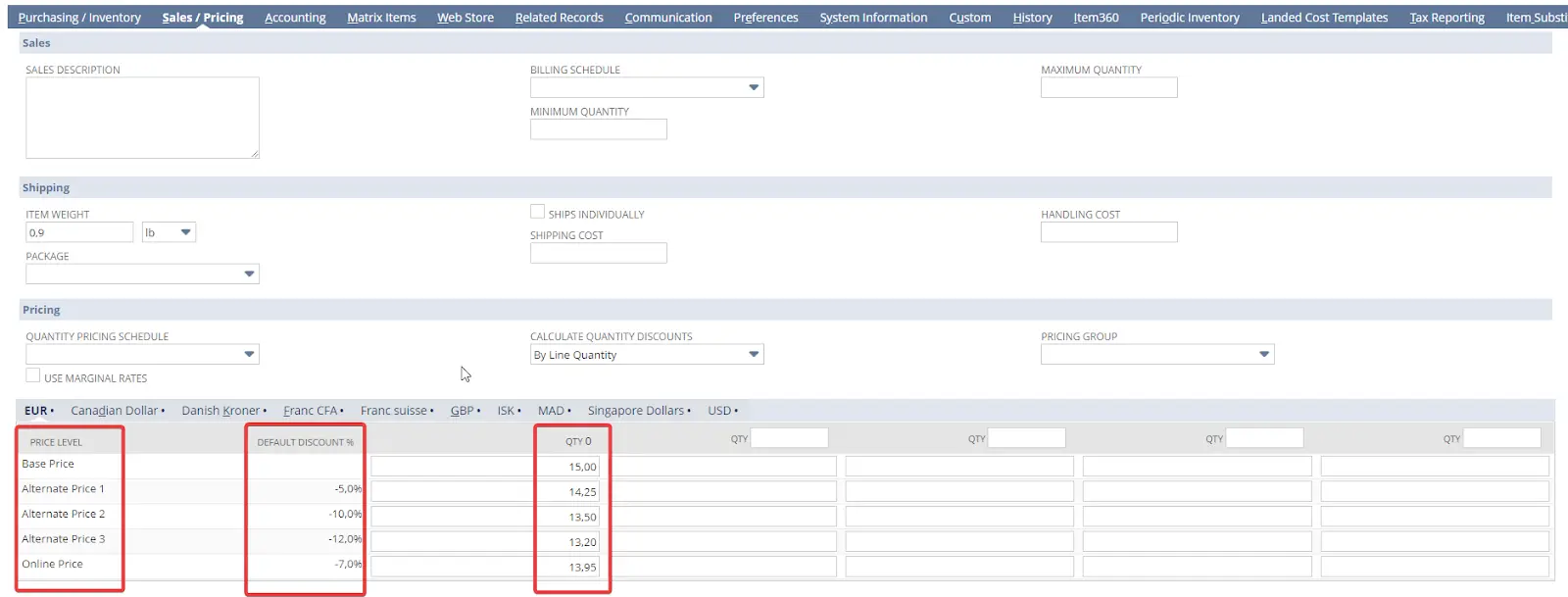
In this example, the base price is set at 15.00. NetSuite then calculates the alternate price levels based on the discount percentages configured earlier.
For example:
This allows teams to maintain a consistent pricing structure while reducing manual updates.
Once price levels are configured on the item record, users can select the relevant price level directly on a sales transaction, such as a sales order or invoice.
This is useful when a sales team needs to apply a predefined pricing rule without manually changing the unit price.

In the example above, the user can choose between Base Price, Alternate Price 1, Alternate Price 2, Alternate Price 3, Online Price or Custom.
The Custom option can be used when the transaction requires a price that does not match an existing price level. However, too many manual custom prices can make pricing harder to control, so they should be governed carefully.
NetSuite also allows you to assign a default price level to a customer for a specific item.
This means that when a transaction is created for that customer, NetSuite can automatically apply the right price level, as long as the item and pricing setup are configured correctly.
To do this, open the customer record, go to the Financial tab, and use the Item Pricing subtab to select the item and the relevant price level.

This is especially useful for negotiated pricing. Instead of relying on sales users to remember which price to apply, NetSuite applies the predefined customer-specific pricing directly on the transaction.
For finance teams, this reduces manual corrections and helps keep pricing rules more consistent.
Pricing groups are useful when you want to apply customer-specific pricing to a group of related items.
For example, instead of configuring item-specific pricing for every product in a category, you can create a pricing group such as “Software Licenses”, “Hardware”, “Services” or “Accessories”, then assign items to that group.
Oracle NetSuite documentation explains that pricing groups let you set customer-specific price levels for groups of items. It also notes that a pricing group price level can override the customer’s general price level, but not item pricing.
To manage pricing groups, go to the accounting lists and filter the list by Pricing Group.

You can then create a new pricing group by entering a name and saving it.

Once the pricing group exists, you can assign it to an item from the Sales / Pricing tab of the item record.

Pricing groups are helpful when your pricing logic is based on product families. They reduce repetitive configuration and make customer-specific discounts easier to manage across multiple related items.
Price levels, pricing groups and quantity pricing are related, but they solve different problems.
Price levels answer the question: “Which price should apply to this item?”
They are best for standard pricing tiers such as retail, wholesale, partner or online prices.
Pricing groups answer the question: “Which price level should apply to this customer for this group of items?”
They are best for customer-specific discounts across related products.
Quantity pricing answers the question: “Should the price change depending on how many units are sold?”
It is best for bulk discounts or volume-based pricing.
In many NetSuite environments, these features work together. A company may use price levels as the foundation, pricing groups to apply customer-specific logic by product family, and quantity pricing to apply volume discounts.
The key is to avoid creating unnecessary complexity. If one simple price level is enough, do not create a pricing group. If pricing differs only by quantity, quantity pricing may be the better fit.
Quantity pricing allows NetSuite to automatically apply different prices based on the quantity sold.
This is useful when you offer volume discounts, for example:
Oracle NetSuite documentation explains that quantity-based pricing lets you automatically set different sales prices for items based on how many are being sold. It is designed to support bulk discount scenarios.
On the item record, quantity columns can be used to define price breaks for each price level.

In this example, each quantity threshold has its own price. The price can change when the customer orders 10, 20, 30 or 40 units.
This allows NetSuite to apply the right unit price automatically instead of asking users to calculate the discount manually.
If your quantity pricing logic needs to be reused across several items, you can create a Quantity Pricing Schedule.
A quantity pricing schedule acts as a reusable template. Instead of manually entering the same quantity breaks on every item, you define the schedule once and apply it where needed.

When creating a quantity pricing schedule, you can define the calculation method and the discounts or prices for each quantity threshold.
NetSuite also allows you to choose how quantity discounts are calculated. According to Oracle NetSuite documentation, quantity discounts can be calculated by line quantity, overall item quantity, overall parent quantity or overall schedule quantity.
This matters because the same sales order may contain multiple lines, parent items or items using the same schedule. The calculation method determines which quantities NetSuite uses to trigger the discount.
Once the quantity pricing schedule has been created, you can select it on the item record under the Sales / Pricing tab.

You can also choose whether to use marginal rates.
When marginal rates are enabled, the discount applies only to the units within each price bracket. For example, if the first 100 units are full price and units above 100 receive a discount, only the units above 100 are discounted.
When marginal rates are not enabled, the discount can apply to the full quantity once the threshold is reached.
This distinction is important because it can significantly change the final transaction amount.
Standard NetSuite item pricing features cover many scenarios, but some companies need more advanced pricing logic.
Custom sales pricing can be useful when pricing depends on specific business rules that are not fully covered by standard price levels, pricing groups or quantity pricing.
For example, a company may need pricing based on:
In the example below, custom item group pricing is used to manage discount percentages by item group and price level.

Custom pricing can be powerful, but it should be designed carefully. If too much pricing logic is customized without clear governance, it can become harder to maintain, test and explain.
Before building custom pricing, it is worth checking whether standard NetSuite features can support the requirement. If the pricing model is part of a broader ERP setup or optimization project, working with an experienced NetSuite partner can help avoid unnecessary complexity. Novutech supports European growth companies with NetSuite implementation, optimization and long-term support.
NetSuite item pricing is flexible, but that flexibility can create complexity if the setup is not governed properly.
A first common mistake is creating too many price levels. If every exception becomes a new price level, users may struggle to know which one to apply.
A second mistake is using pricing groups when item-specific pricing would be clearer. Pricing groups are useful for product families, but they should not replace clean item-level pricing where a specific price is required.
Another frequent issue is forgetting to test pricing rules on real transactions. A configuration may look correct on the item record, but the real test is whether the right price appears on a sales order or invoice.
Companies also need to be careful with quantity pricing. The difference between marginal and non-marginal rates can change the transaction amount, so the logic should be validated with practical examples.
Finally, international companies should consider currencies early. If items are sold in several currencies, pricing should be reviewed across the currencies used by the business.
The right NetSuite pricing setup depends on how your business sells.
If your pricing is based on broad customer categories, price levels may be enough.
If specific customers have negotiated prices for specific items, customer-specific item pricing is usually more appropriate.
If discounts apply across product families, pricing groups can make the setup easier to maintain.
If your pricing changes based on volume, quantity pricing or quantity pricing schedules are the right starting point.
If your pricing depends on business-specific rules that standard NetSuite cannot support, custom sales pricing may be needed.
For scaling companies, the goal is not to configure every possible pricing feature. The goal is to create a pricing structure that is accurate, maintainable and easy for sales and finance teams to use.
NetSuite item pricing helps companies manage pricing complexity without relying on manual calculations or uncontrolled price overrides.
The most important features are:
A good NetSuite pricing setup should be simple enough for users to apply correctly, but structured enough to support your commercial strategy as the business grows.
If your current pricing setup is becoming difficult to manage, it may be time to review how your price levels, pricing groups, quantity rules and custom pricing logic work together.
Pricing rules often look simple until they meet real commercial complexity: customer exceptions, subsidiaries, currencies, discounts, approvals and reporting requirements.
Novutech helps growing European companies configure NetSuite around their real finance, operations and commercial processes. With 250+ customers, 65+ consultants and long-term support after go-live, we help businesses build scalable ERP setups that can evolve with their growth.
NetSuite item pricing is the way NetSuite manages sales prices for items using base prices, price levels, customer-specific pricing, pricing groups and quantity-based discounts.
Price levels define different prices for an item. Pricing groups apply customer-specific price levels to groups of related items, which makes them useful for product-family discounts.
Quantity pricing automatically changes the item price based on the quantity sold. It can be configured directly on the item record or through reusable quantity pricing schedules.
Yes. NetSuite can assign specific price levels or item prices to customers, so the correct price is automatically applied on sales transactions.
Custom sales pricing should be used when standard price levels, pricing groups or quantity pricing cannot support your commercial rules, contract terms or business-specific discount logic.
Let's discuss how we can help you move from complexity to clarity.